Field Service Team Management
Build color-coded crews, put them on one calendar, and reshuffle a roster in a single edit. JobTrail keeps every tech looking at the right day — and only the parts of the business you want them to see.
14-day free trial · No credit card required





Join 14,000+ pros

Built In AI Assistant
Powered by Google Gemini
Roster updated
Mike joins Team Blue
📅 Mon–Fri this week
15+ hrs
Saved Per Week
One edit
To Reshuffle A Crew
Real-time
Roster To Schedule
Field-level
Permission Control
The right crew on every job, with a schedule that updates itself when your roster changes.
How team management works in JobTrail
Build
Create a team, pick a color from the palette, and add your field staff. Vehicle plates show right on the roster.
Schedule
Put jobs on the calendar — every block carries the team color and crew badges, and each tech sees their own day.
Adjust
Someone out next week? Set a dated roster change. Your default roster comes back automatically when it ends.
Everything you need to run your crews
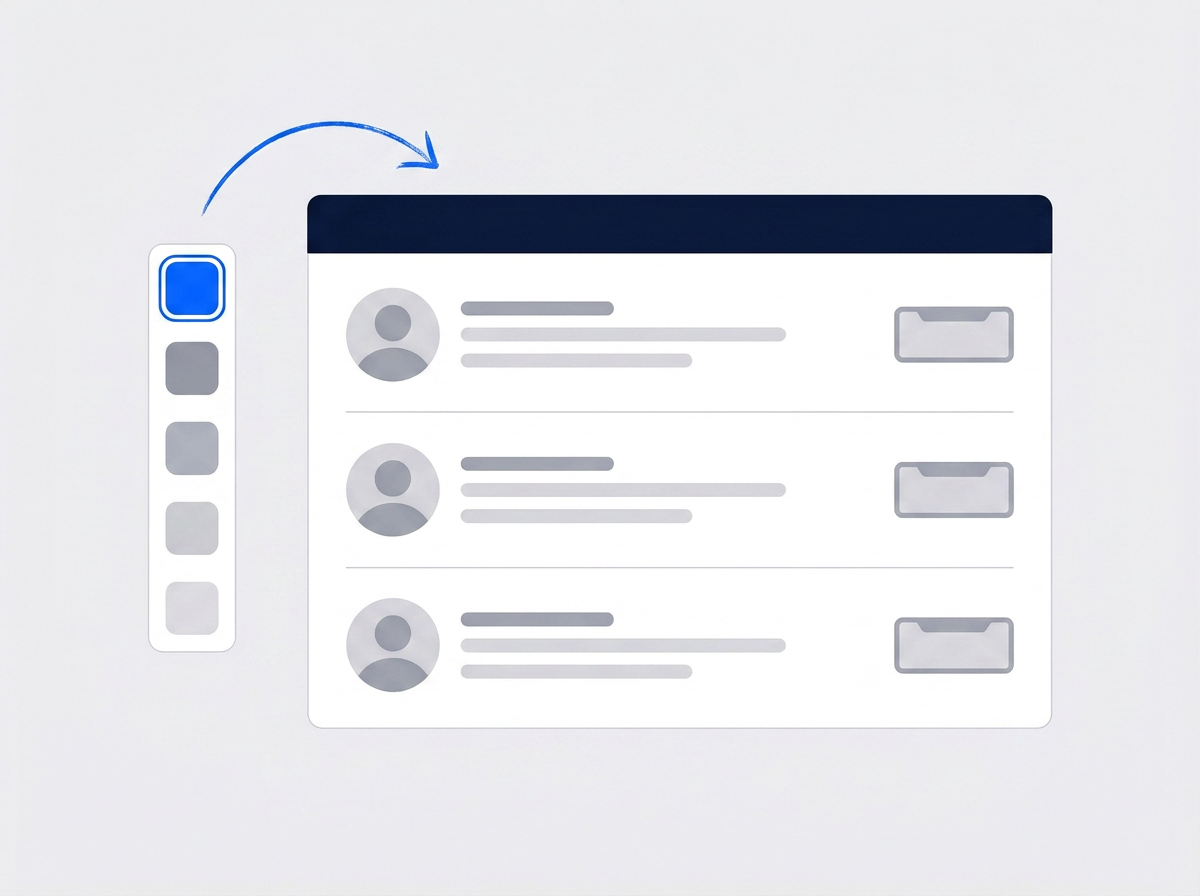
Build your crews in seconds
Create a team, give it a color, and add your field staff. The color palette flags shades already in use, so no two crews ever clash on the calendar.
- Color-coded teams with a clash-free palette
- Vehicle plates show as badges on every crew member
- Availability tracks itself as you add or remove staff
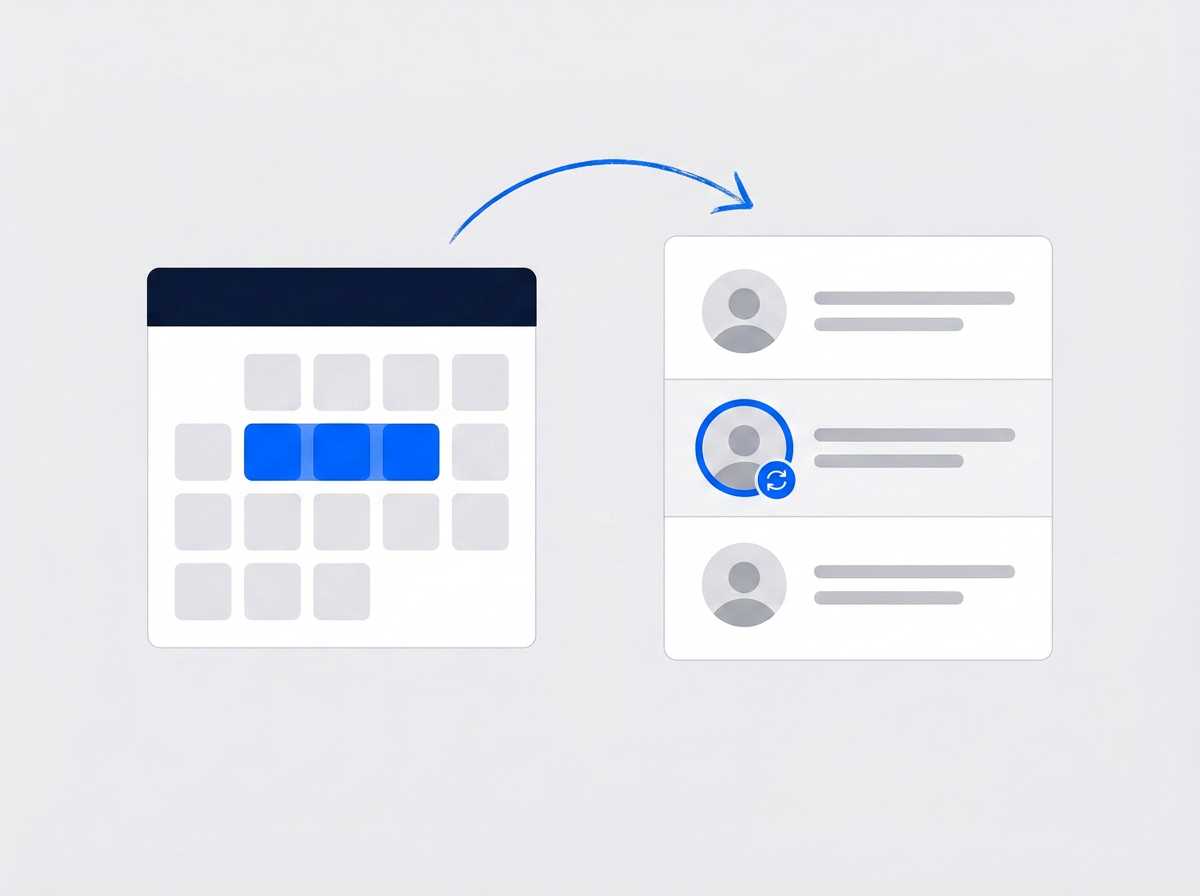
Reshuffle without breaking your setup
Someone out sick next week? Set a dated roster change — for one day or a whole stretch — and your default roster comes back automatically when it ends. Every change lands on the team history timeline.
- Dated roster changes for a day or a date range
- Full roster history on a timeline, with save-as-default
- Disable a team for a period without deleting it
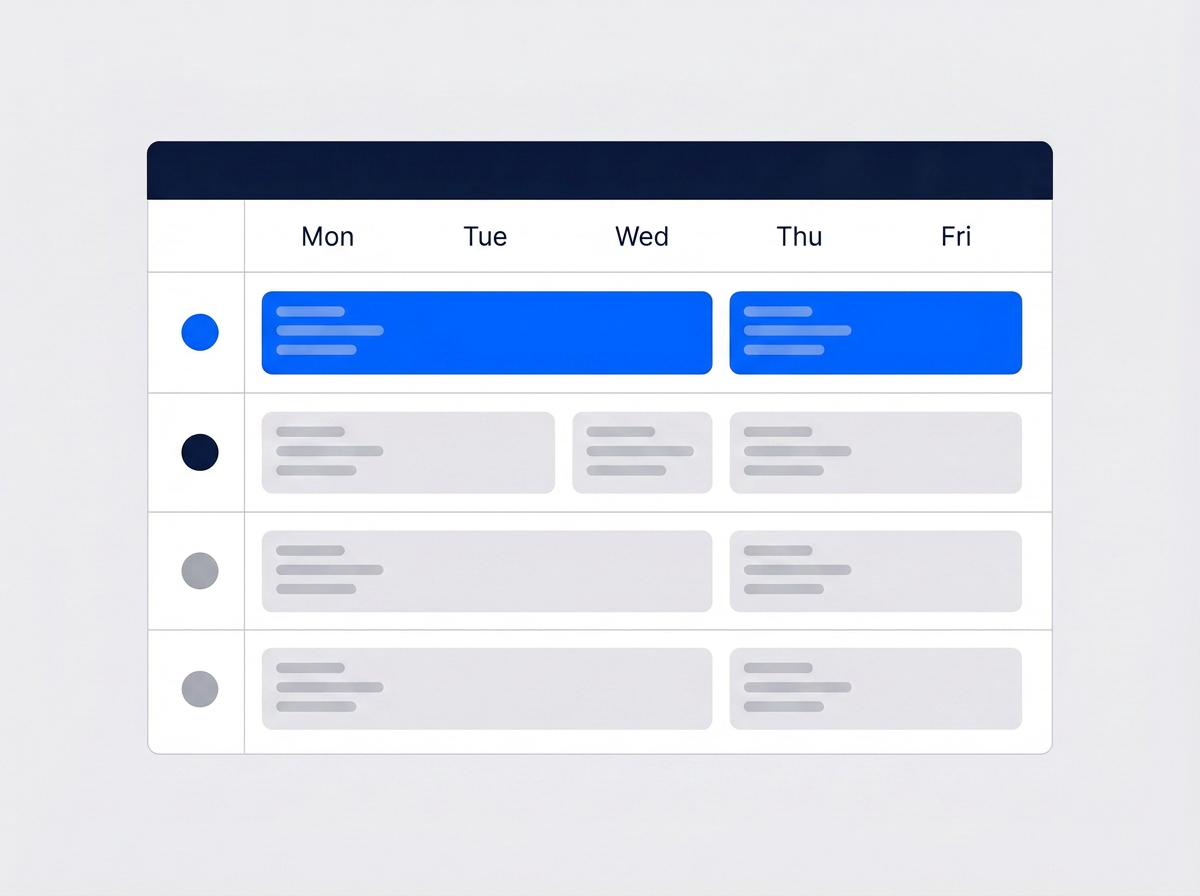
Every crew on one screen
The Team Schedule view lines your crews up as rows, so you see the whole week across every team at a glance. Field techs get a My Schedule view with just their own jobs.
- Team rows with color-coded, crew-badged job blocks
- My Schedule mode shows each tech only their own day
- Solo techs get their own color and row — no one-person teams needed
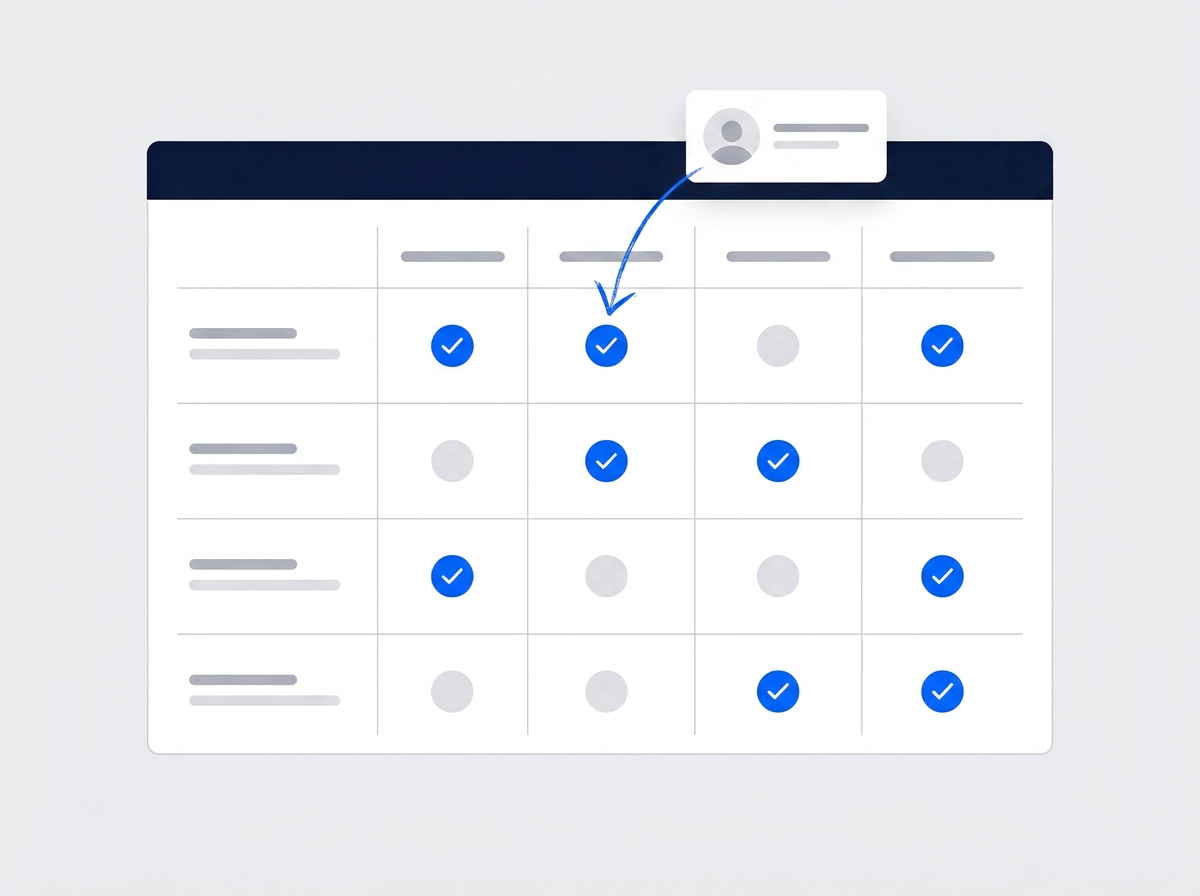
Control exactly who sees what
Invite your team by email and assign each person a role. Build custom roles on a permission matrix that covers every part of JobTrail — down to hiding individual fields from a role.
- Custom roles with View, Create, Edit, Delete, and Approve levels
- Permissions cascade automatically — Edit includes View and Create
- Hide specific fields from a role, not just whole sections
“Sick days used to mean an hour of phone calls. Now I set a roster change, and every schedule updates itself — the default crew comes back on its own the next week.”

Marcus Reed
Owner, Reed HVAC Services
Ready to get your crews organized?
Start your free trial and set up your first team in minutes. No credit card, no feature limits.
14-day free trial · No credit card required
Beyond team management — everything built in
AI Assistant
Powered by Google Gemini. Look up a job, create or update a customer, and ask about a photo — in plain English.
HR & Payroll
Track hours, run payroll, and manage leave — without a separate HR tool.
Fleet Management
Track every vehicle, log maintenance, and get service-due reminders.
Work Permits
Match permit requirements to the job address. Track the documents each issuer wants, through to approved.
Frequently asked questions
Team management software helps you organize field workers into crews, put them on a schedule, and control what each person can see and do. Instead of a whiteboard and group texts, you get color-coded teams, a shared calendar, and role-based permissions in one place.
Yes. Set a dated roster change — one day or any date range — and pick who is on the crew for that window. Your default roster comes back automatically when the change ends, and every change is kept on the team history timeline.
That is up to you. Field staff get a My Schedule view with only their own assignments by default, and custom roles control access to everything else. Managers see every crew side by side in the Team Schedule view.
No. Solo field staff get their own color and their own row on the calendar automatically — no one-person teams required. If they later join a crew, their jobs simply follow the team color.